01
Your icons.
Your choice.
Choose supported icons individually in Settings. Keep everyday essentials in the menu bar and tuck the rest into OverflowBar.
See the first steps OverflowBar
Download for Mac
OverflowBar
Download for Mac
A LITTLE MORE ROOM.
A free, open-source menu bar manager for Mac.
Tuck away the icons you choose. Keep their original controls close.
For macOS 15 & 26 · Apple silicon & Intel
Compatibility detailsNative icon management unavailable on macOS 27+.
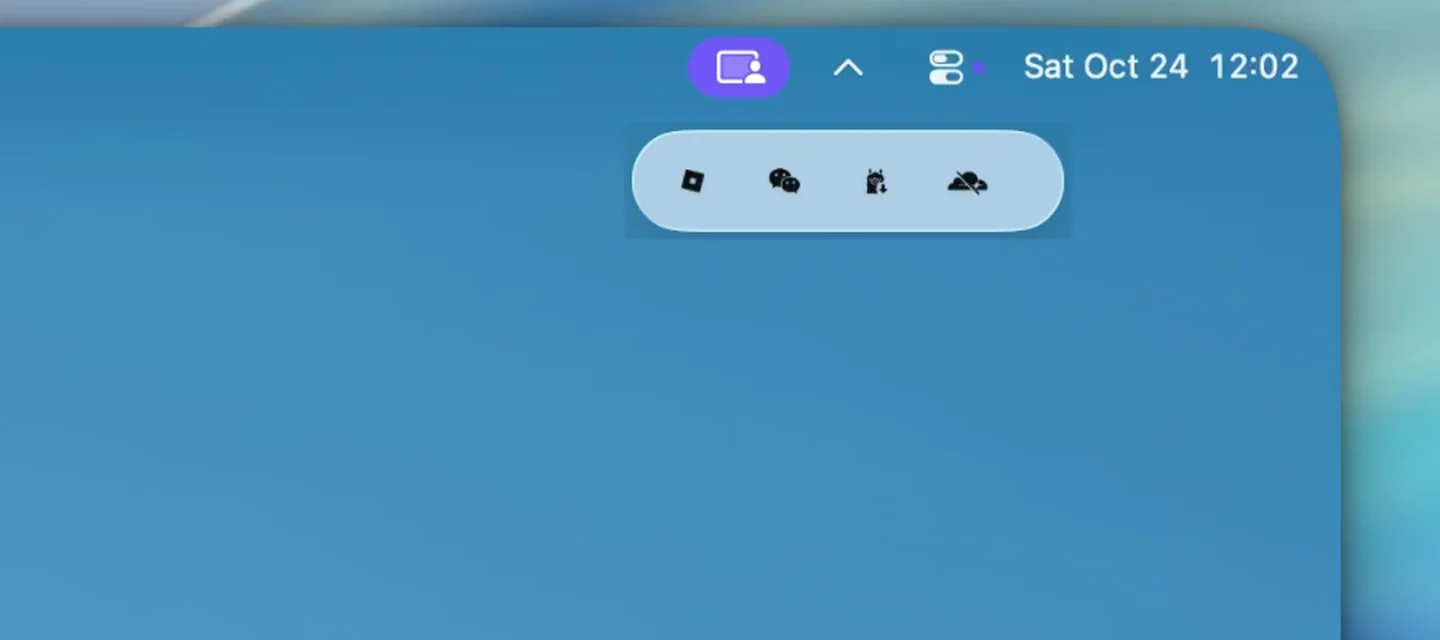
Less crowding above. Your icons right below.
FAMILIAR. JUST A LITTLE CLEARER.
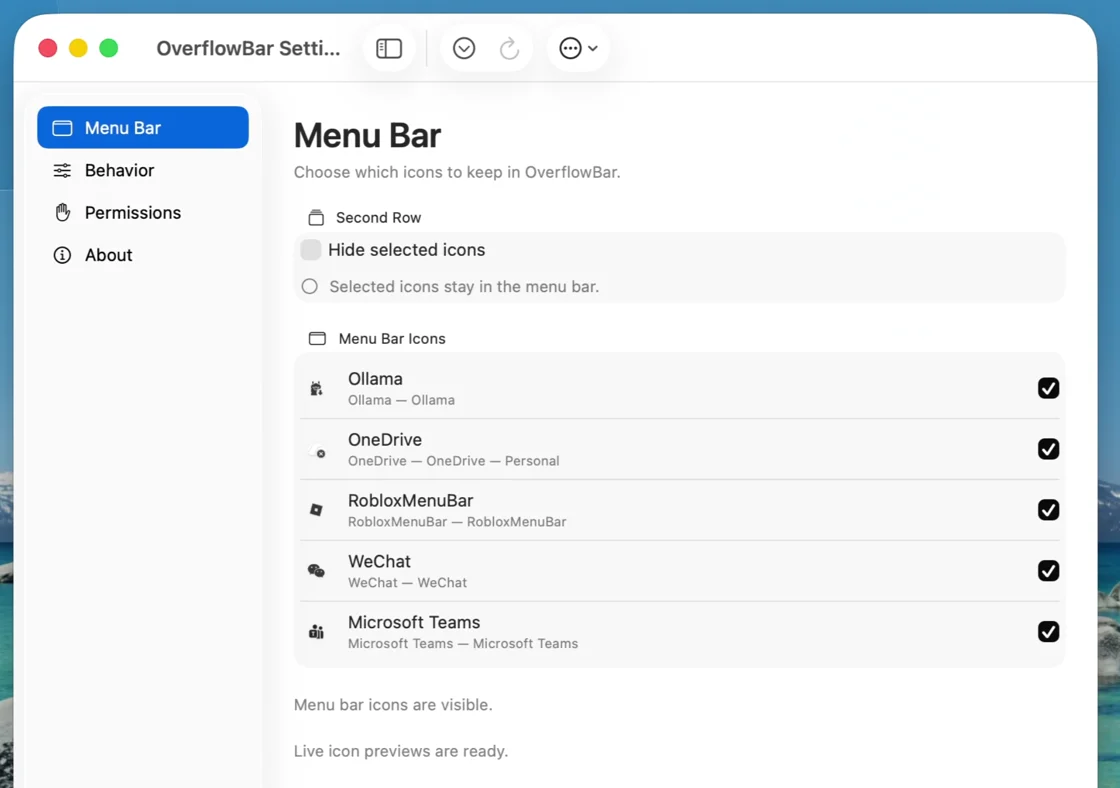
Click the arrow to reveal your selected icons.
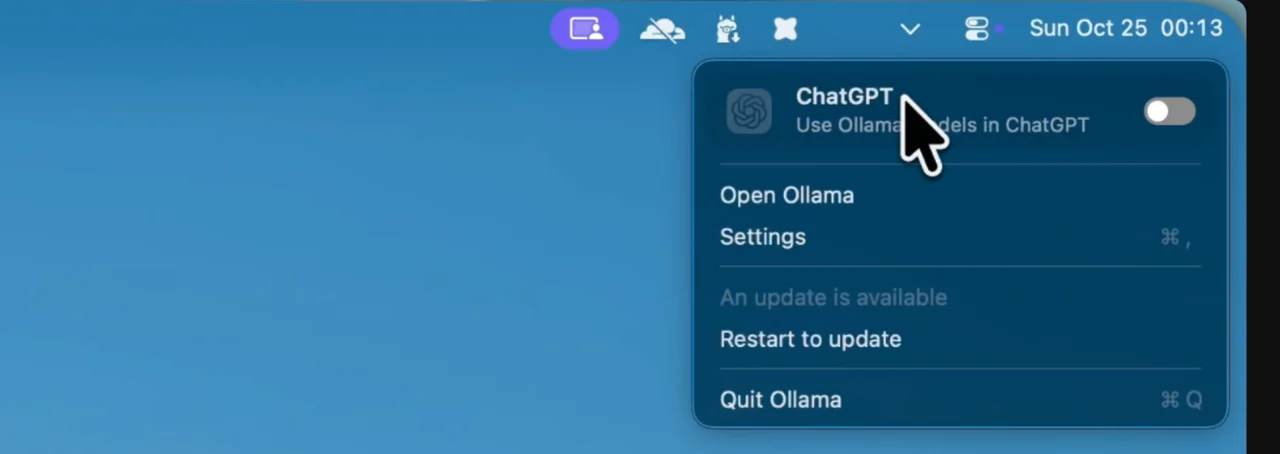
The original app responds. Your controls stay familiar.
01
Choose supported icons individually in Settings. Keep everyday essentials in the menu bar and tuck the rest into OverflowBar.
See the first steps02
Click the menu bar arrow to reveal your selection. Prefer a lighter touch? Enable hover reveal. A longer row scrolls horizontally.
A dedicated place for the icons that crowd your menu bar.
03
Select an icon to open its app’s original menu or popover. Supported toggles work too. OverflowBar brings your existing controls within reach.
Support depends on the app and macOS. Learn about supported icons.
SMALL DETAILS. EVERYDAY DIFFERENCE.
A focused set of tools for a menu bar that feels more manageable.
While hiding is enabled, newly appearing eligible icons join your saved selection automatically.
Enable hover reveal to show the second row when your pointer enters the menu bar.
Optional Screen Recording shows live icon previews. Available app icons are used without it. Captures stay on your Mac.
Turn hiding off, reset your selection, or quit to reveal managed icons. Retry Hiding reapplies your saved selection when a layout needs another attempt.
OPEN BY DESIGN.
Free to download. Open to explore.
OverflowBar’s source is yours to read, build, and contribute to under GPL-3.0.
Built with SwiftUI and AppKit. Its native engine includes work from the Ice and Thaw projects.
Star on GitHub Read the acknowledgementsYes. Download it free from GitHub Releases, or explore and build the GPL-3.0 source yourself. There is no website account or sign-up step.
The universal build targets macOS 15 and 26 on Apple silicon and Intel. Physical macOS 15 and Intel validation remains incomplete. Native icon management is disabled on macOS 27 and later. Read the compatibility details.
Accessibility lets OverflowBar arrange supported icons and open their controls. Screen Recording is optional and enables live previews. Without it, available app icons are used. Understand the permissions.
Yes. Turn off Hide selected icons to reveal them. Reset Icon Selection also clears the saved selection. Quitting reveals managed icons while keeping your choices for next time.
No. Preview captures and icon selections remain local. The Sparkle updater contacts GitHub to check for signed updates and asks before installation. Read the privacy details.
A LITTLE MORE ROOM. STARTING NOW.
Free & open source · macOS 15 & 26
Installation & compatibility