GET STARTED.
Install OverflowBar
on your Mac.
Download the Mac menu bar manager, check compatibility, and set up the permissions it needs.
Download for MacCheck your Mac first.
OverflowBar’s current universal release contains Apple silicon (arm64) and Intel (x86_64) binaries, with a macOS 15 deployment target. That build target is separate from physical compatibility testing.
| macOS | What to expect |
|---|---|
| macOS 15 | The binary targets this version. A macOS 15 system was not physically tested for the current release. |
| macOS 26 | A limited native-fixture workflow was checked on macOS 26.4. The complete third-party app and display matrix was not tested. |
| macOS 27+ | Native icon management is disabled. The engine leaves icons accessible in the menu bar. Runtime behavior on macOS 27 was not tested. |
Intel hardware was not physically tested. External displays, permission changes, and different menu bar configurations also have incomplete physical coverage. Read the release validation report.
Install from GitHub.
- Download the disk image.
Get the DMG from the official latest stable release. You do not need Homebrew or a website account.
- Drag OverflowBar to Applications.
Open the downloaded DMG, then drag OverflowBar into your Applications folder.
- Open OverflowBar.
Launch the copy in Applications. Setup walks you through permissions and choosing icons.
If macOS blocks the first launch
The community build is ad-hoc signed and not notarized. For a trusted copy downloaded from the official release, follow Apple’s Open Anyway instructions in System Settings → Privacy & Security. Follow the labels shown by your macOS version.
Two permissions. Different purposes.
Accessibility — required for icon management
This lets OverflowBar identify, arrange, and activate supported menu bar items. Open System Settings → Privacy & Security → Accessibility and enable the installed OverflowBar app. Without this permission, icons stay available in the menu bar.
Screen Recording — optional
This enables live status-icon previews. Without it, OverflowBar uses available application icons. Open System Settings → Privacy & Security → Screen & System Audio Recording if you want live previews. macOS may ask you to quit and reopen the app.
Preview captures stay in memory on your Mac and are not uploaded. Read how OverflowBar handles permissions and captures.
Choose. Tuck away. Reach.
- Choose your icons.
In setup or Menu Bar settings, select the supported status items you want in the second row. Protected system controls and icons that cannot be safely identified are excluded.
- Enable hiding.
Choose Hide Icons & Finish in setup, or turn on Hide selected icons in Settings.
- Open the second row.
Click the OverflowBar arrow in the menu bar, then select an icon to open its original menu or popover. A longer row scrolls horizontally.
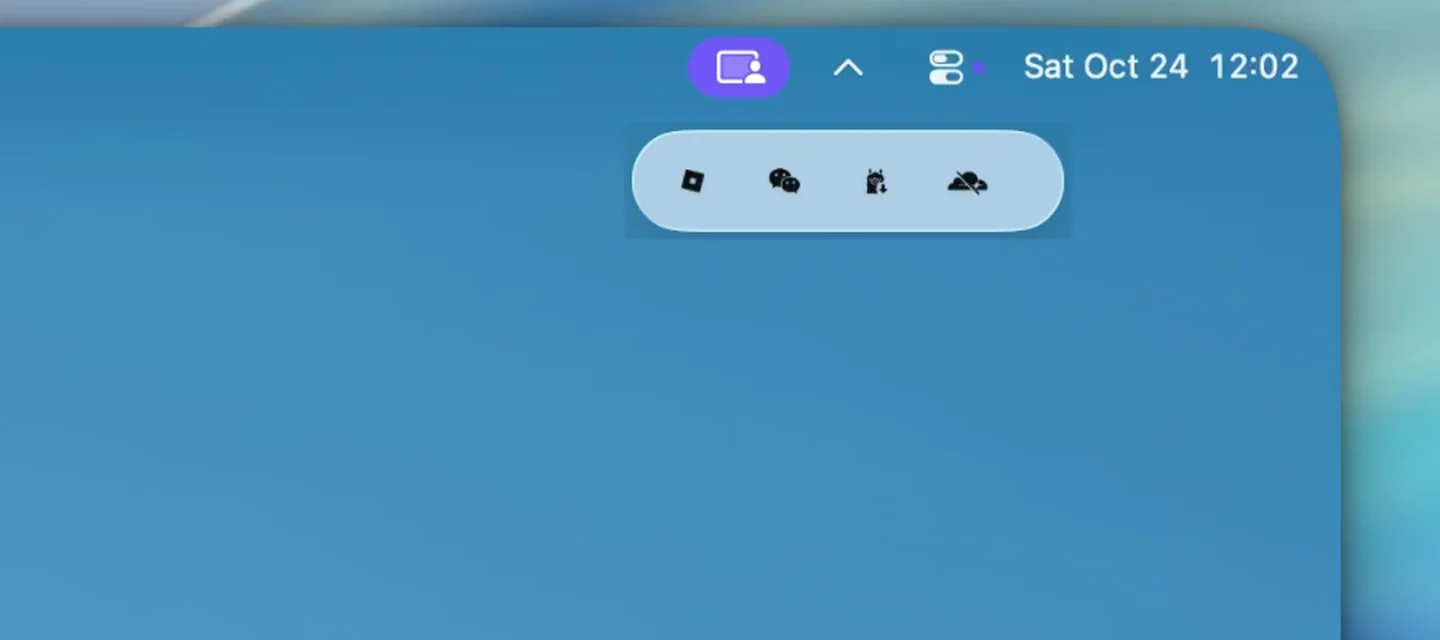
Enable hover reveal in Behavior settings if you prefer. The open panel supports keyboard focus, arrow-key navigation, and Escape to dismiss.
Prefer Homebrew?
The project provides a third-party Cask in its own repository. Use the repository URL and the fully qualified cask name:
brew tap EvanProgramming/overflowbar https://github.com/EvanProgramming/OverflowBar.git
brew install --cask EvanProgramming/overflowbar/overflowbar
Homebrew may ask you to trust this third-party tap or cask. It does not grant macOS privacy permissions or remove first-launch trust prompts. Read the Homebrew guide.
Updates, recovery, and uninstalling.
Keep up to date
Use Check for Updates in the app, or download the latest release. Sparkle verifies signed updates and asks before installing. Signed update verification does not mean the community app is notarized. Replacing an ad-hoc build can require reauthorizing permissions.
Restore your icons
Turn off Hide selected icons to reveal them. More → Reset Icon Selection restores icons and clears your choices. Quitting reveals managed icons while retaining your selection. See recovery steps.
Uninstall
Quit OverflowBar, then remove it from Applications. Homebrew users can run brew uninstall --cask overflowbar.
Roll back if needed
Sparkle does not downgrade automatically. The project retains v1.0.19 for manual rollback.
Need a hand?
Questions & troubleshooting